Global Options
This tab allows you to adjust WebClient look. 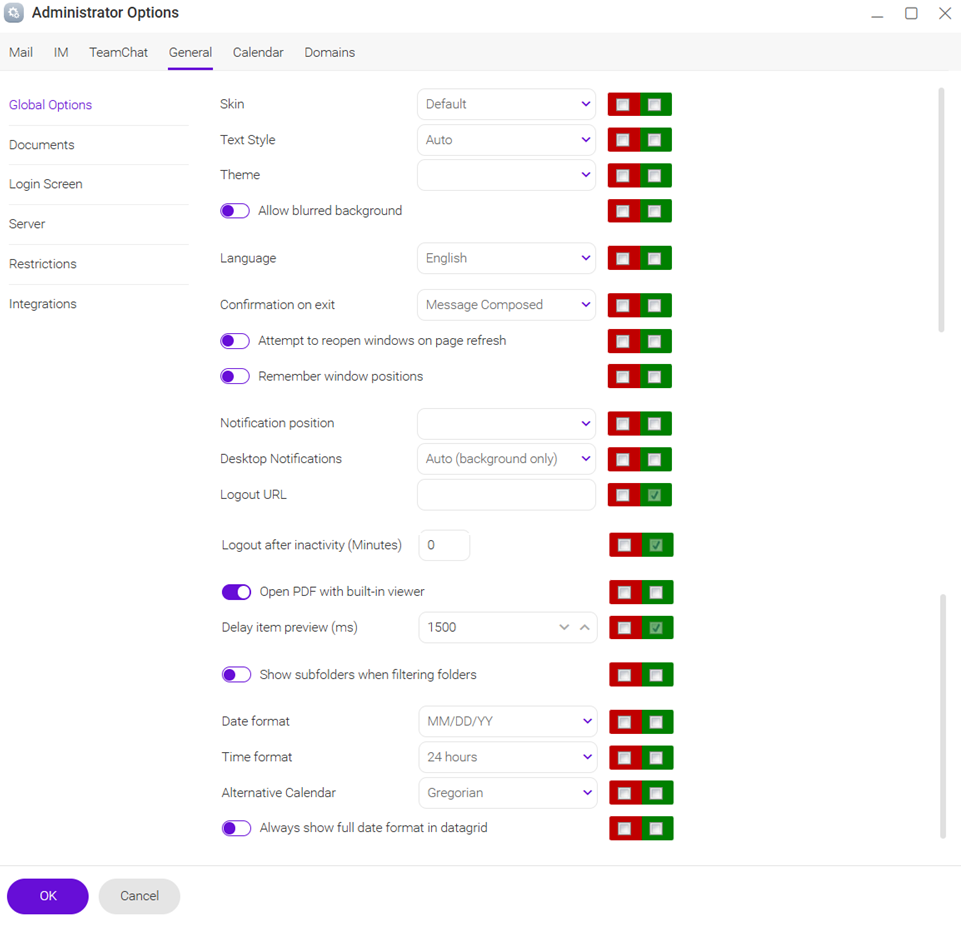
Figure. Global options section.
| Field |
Description |
|---|---|
|
Skin |
Use the drop-down menu to select the visualization of your skin. You can also add Banner or use the Skin created by yourself. |
|
Text Style |
Select the font style: Auto, Retina, Normal. |
|
Theme |
Select the theme kind: Light, Dark, Auto. |
|
Allow blurred background |
Turn on the toggle to blur the background of WebClient. |
|
Language |
Select the language of the interface. |
|
Confirmation on exit |
Select conditions when WebClient asks for confirmation on exit: Never, Always, Message Composed (when you have the new message window open). |
|
Attempt to reopen windows on page refresh |
Turn on the toggle to enable reopening unclosed and minimized windows of Mail and Instant Messaging applications on WebClient exit. |
|
Remember window positions |
|
|
Notification position |
Select the notification position in the WebClient window. |
|
Desktop Notifications |
Select the way the desktop notifications should work: Auto, Always, Never. Note: Desktop notifications are the system Windows OS / Mac OS notifications managed in Action Center / Notification Center. WebClient has its own notifications that can be managed in Administrator Options or Options. |
|
Logout URL |
Enter logout URL and after the logout is finished, a user is directed to the specified URL. |
|
Logout after inactivity (min) |
Specify the time period in minutes, the users are logged out automatically after this period is up. |
|
Open PDF with built-in viewer |
Turn on the toggle to open PDF files in the preview window. If the toggle is off the PDF files, are downloaded to a folder on your computer. |
|
Delay item preview (ms) |
Select time period of item preview delay. |
|
Show subfolders when filtering folders |
Turn on the toggle to allow display of subfolders in folders filtering. In WebClient, click Inbox to open the folder tree and enter a search request to filter the folders. |
|
Date format |
Select the date format: MM/DD/YY, DD/MM/YY, etc. |
|
Time format |
Select the date format: 24 hours, 12 hours. |
|
Alternative Calendar |
Select the alternative calendar: Gregorian, Jalaali, Hijri, Buddha. |
|
Always show full date format in datagrid |
|
Banner
To see the banner  in the header and in footer of the right side when you select Followed, Chat and Calendar
  , go to Skin and select Banner in the drop-down menu
  .
.
/AdmOpt_Banner_482x380.png)
Figure. Banner.
Note: To display the banners, enable Banners Ads in WebAdmin > White labeling.

